Showing posts with label label matching. Show all posts

Thursday, 28 February 2019

Using the Run Exclusions dialogue

One of the processes users are often interested in is filtering their data after they have been imported.  This is often simpler than filtering a large  table of input data into multiple versions for different different purposes, especially if the input file is something like a 10 GB CSV file.


In Biodiverse this can be done using the Run Exclusions dialogue, accessed via the Basedata menu.

The main principle of this dialogue is to allow the user to select some set of properties, of either labels or groups, and then remove them from the basedata.  A simple example might be to remove all groups containing five or fewer labels, or labels with ranges exceeding some threshold.  More complex queries can also be specified using text matching (labels) or spatial conditions (for groups).

One can also delete labels using the selection menu in the View Labels tab (see this previous post), but this does not apply to groups (unless you transpose the basedata so you can treat the groups as labels, and then transpose them back).

An important point to note is that the Run Exclusions dialogue does not trigger updates in any open View Labels tabs.  If you delete labels or groups from a basedata then you will need to close and re-open any View Labels tabs for that basedata to see the changes.

It is also worth noting that the aggregation of labels to groups is a one way process.  The original input records cannot be recovered from a basedata object unless a cell size of zero is used (for numeric axis data) or there is only one record per text axis (when text axes are used).  It is impractical to store the 10 GB data from the example at the top.


The rest of this blog is just a set of examples.  The data are the example data provided with Biodiverse.   There are also details in the help system at https://github.com/shawnlaffan/biodiverse/wiki/SampleSession#excluding-data


The Exclusions dialogue is accessed through the Basedata menu.  Exclusions will apply to the currently selected Basedata object.  

View Labels tab showing the original distribution of data.  

This example uses a definition query to delete all groups whose centroid falls inside polygons where the state field has a value of 'Tas'.   

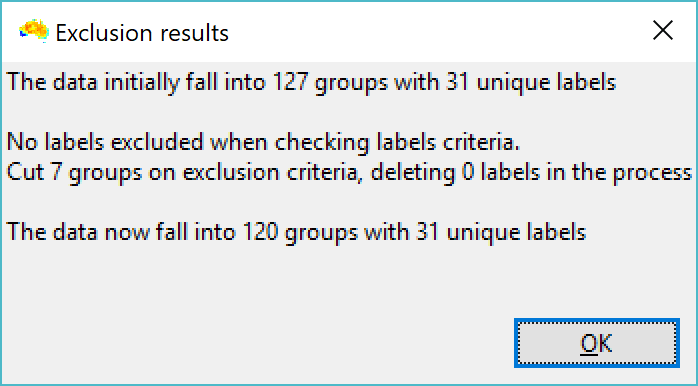
The system gives feedback about how much was deleted.  

Note the removal of most cells in Tasmania.  The reason not all cells are removed is that the centroid of some groups falls outside the polygon.  An overlap condition will be added one day, but until then the shapefile needs to be modified to catch these cases.

This example will remove all groups with fewer than 6 species, or where the sample redundancy score is less than 0.1.

The feedback (based on a fresh copy of the basedata)

Not much is left in this case...

This (highly contrived) contrived regular expression will delete any label ending in sp followed by any digit and ending in 2.  It will delete Genus:sp12, Genus:sp22 up to Genus:sp92, but not labels like Genus:sp2, Genus:sp83, Genus:sp222.  (Ignore the cursor between the 2 and the $)

And the feedback.  Only two labels are deleted, as the only matching labels in this basedata are Genus:sp12 and Genus:sp22.

That's about it, really.  If you have questions then they can be posted to the Biodiverse user group, or to the google plus page (until Google shuts that service down).

Shawn Laffan
28-Feb-2019


--------

For more details about Biodiverse, see http://shawnlaffan.github.io/biodiverse


To see what Biodiverse has been used for, see https://github.com/shawnlaffan/biodiverse/wiki/PublicationsList


You can also join the Biodiverse-users mailing list at http://groups.google.com/group/Biodiverse-users or follow the google plus page:  https://plus.google.com/+BiodiverseSoftware


Wednesday, 26 April 2017

Matching spatial, tree, matrix and property data is now easier

One of the biggest bugbears when using Biodiverse has been matching the names between the spatial data and any tree, matrices, group properties and label properties.

Biodiverse uses an exact matching scheme to link tree branch names with Basedata labels (e.g. species).  If there is even a single character different then the two sets will not match, and analyses either do not run or are incomplete.

The standard approach used in Biodiverse to ensure the data match is for users to provide a remap table that "maps" labels from one data set to another (e.g. make the tree names match the basedata).  However, experience suggest that users are often unsure what columns should be used for what (and sometimes how many), and that generation of the remap file is more difficult than desired.

Biodiverse version 2 has a greatly simplified remap process that can generate possible matches automatically.  Any object can have its element names remapped at import, as before, but now there are also options under the Basedata, Tree and Matrix menus.  Better yet, there is also a centralised interface that can be accessed under the file menu.


In the centralised remap interface, one can match any object to any other object in the project, as well as to names loaded from a file.  If an object is chosen then Biodiverse will search the sets of names in each object to find possible matches.  The User defined from file is the conventional process, where the file needs to define the set of input and remapped columns.  The Auto from file allows users to load a list of names which will be searched to find possible matches, in the same way as it searches other objects.

The search process uses a fuzzy text matching scheme, as well as searching for differences purely in punctuation or in quoting characters.  The minimum acceptable distance option allows control over how different possible matches can be.  If a very large value is used then anything can match anything else, which is unlikely to be useful.

The interface for the automatic remaps is as below.  There are panes listing exact matches, non-matches (i.e. differences were too great), punctuation matches and possible typos.  Users can choose to ignore any of these sets, and also select subsets within the sets if, for example, there are false matches.

The menus for Basedata, Matrices and Trees all have remap options, but there is also a centralised system under the File menu.


Any object can be matched with any other object, as well as loading remaps from files.

The Maximum acceptable distance controls how different names can be before they are no longer considered as possible matches.
Users can control the level of remapping used within the match categories.  


Users can also choose to export the remap to a file to re-use later on (or inspect for possible problems) using the Export remap to file button.  A copy of the remap can also be sent to the clipboard for direct use in spreadsheets, text editors and the like.


Remapping of BaseData objects is not permitted if they have existing outputs, as that would potentially wreak havoc with the matches between the BaseData and the outputs.


The system will also warn if you try to map an object to itself (but it will let you try if you are determined to do so).


Kudos to Luke Fitzpatrick who got it all working.


Shawn Laffan
26-Apr-2017


For more details about Biodiverse, see http://purl.org/biodiverse 

For the full list of changes in the 1.99 series (leading to version 2) see https://purl.org/biodiverse/wiki/ReleaseNotes (for all issues addressed or being targeted to fix for version 2, see https://github.com/shawnlaffan/biodiverse/milestone/4 ).

To see what else Biodiverse has been used for, see https://purl.org/biodiverse/wiki/PublicationsList


You can also join the Biodiverse-users mailing list at http://groups.google.com/group/Biodiverse-users